STOCK LIST
- 1. INTRODUCTION
- 2. STOCK LIST
1.INTRODUCTION

Stock List will give user the complete information on the details information of the items. Basically on the main screen, user can click to link for more details information. User is also allowed to search for the specific stock by key in the required stock name and click on ‘Go’.
2. STOCK LIST
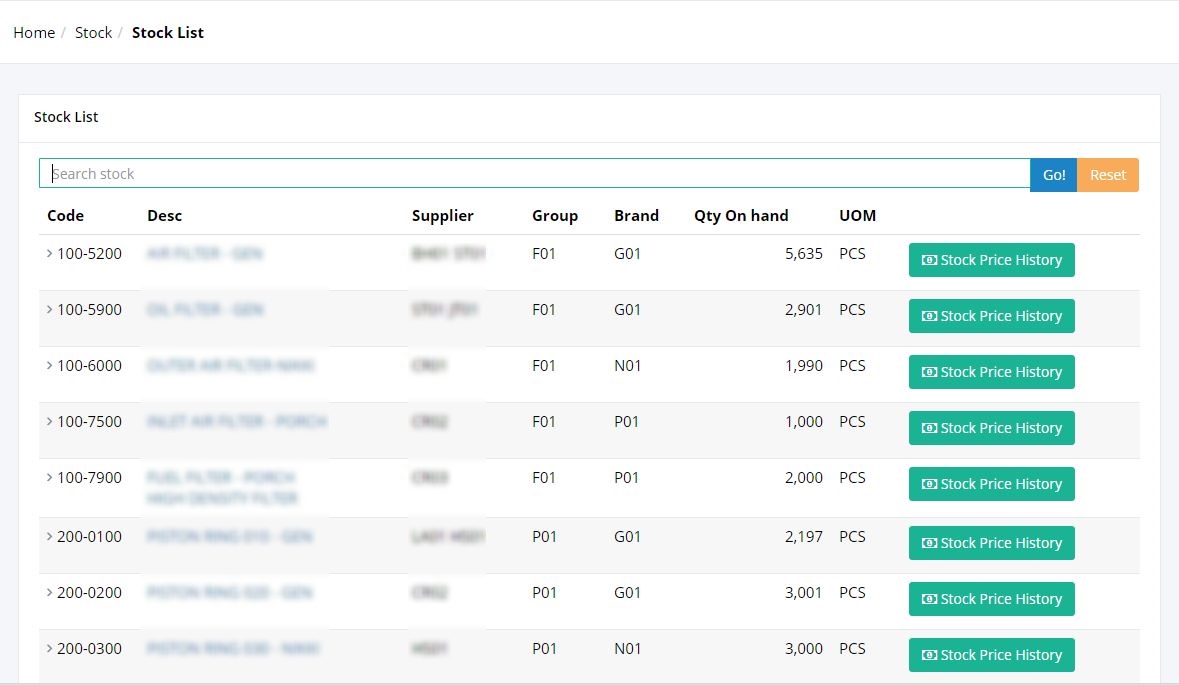
When user clicked on Stock List at the left side, this screen will pop out. User may view all the stocks information sorting by the Stock Code, descriptions, Suppliers, Group, Brand, Quantity on hand and Unit of Measurement (UOM).
User may key in the required stock name to find the specific information on the stock. User may click on Go to find the required stock.
3. STOCK DESCRIPTION
User is allowed to click the Stock Description to view the Stock Information in details.
Clicking on the description will link user to the next screen:
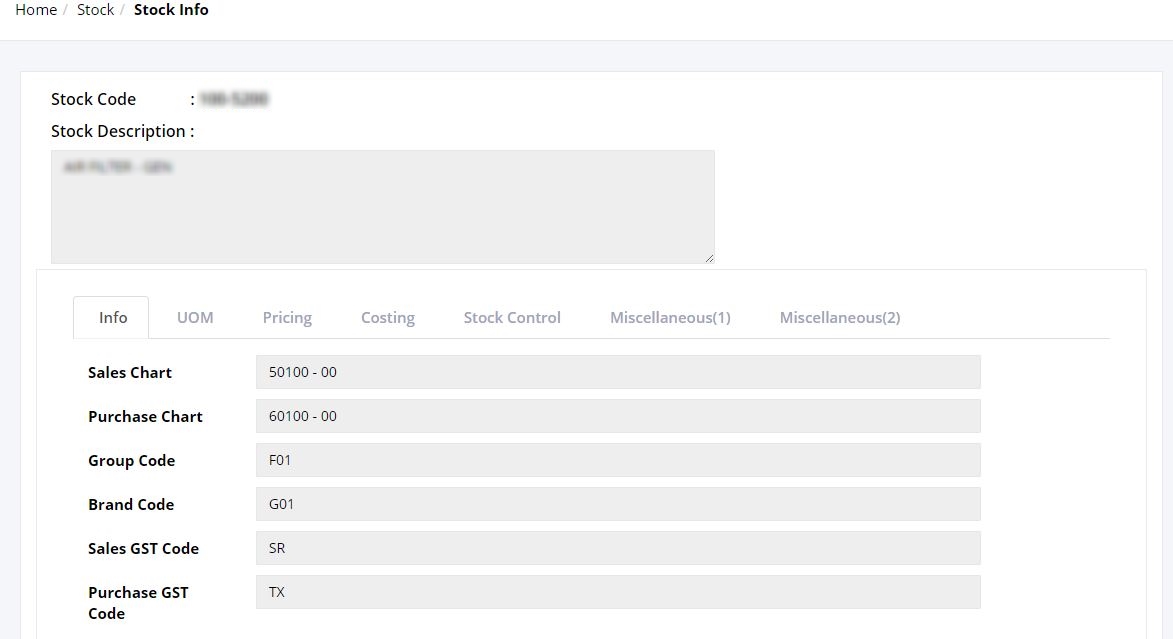
On the screen, user can view more details information of the stock. Stock code will come with the Stock Description. There are more details tab that can be clicked by User such as Info, UOM, Pricing, Costing, Stock Control, Miscellaneous (1) and 2. For example at Info tab, user may view the information of the stock such as Sales chart, Purchase Chart, Group Code, Brand Code, Sales GST Code, and Purchase GST Code.
4. STOCK PRICE HISTORY
Clicking on ‘Stock Price History’ button will directly link user to the Stock Price History Screen

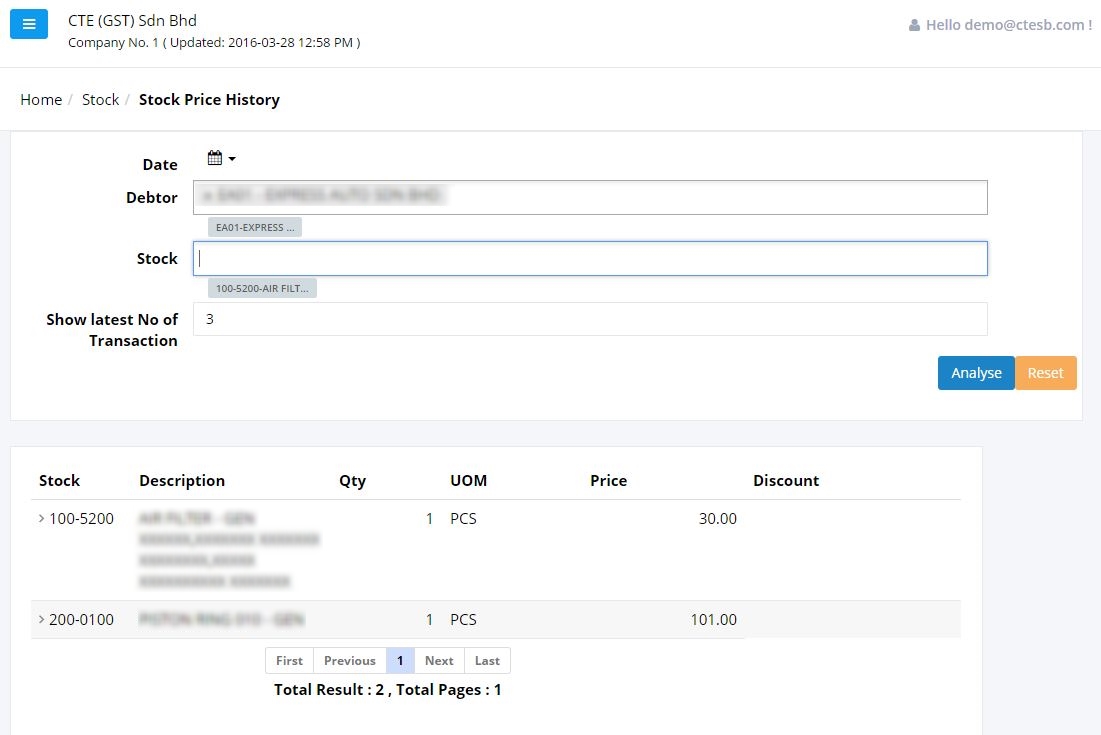
User can click on the stock name to see more information as follows:

User is also allowed to click on the Doc No, to view the document in details. Clicking on the Doc No will link user to Document List screen that display the details for the transaction.
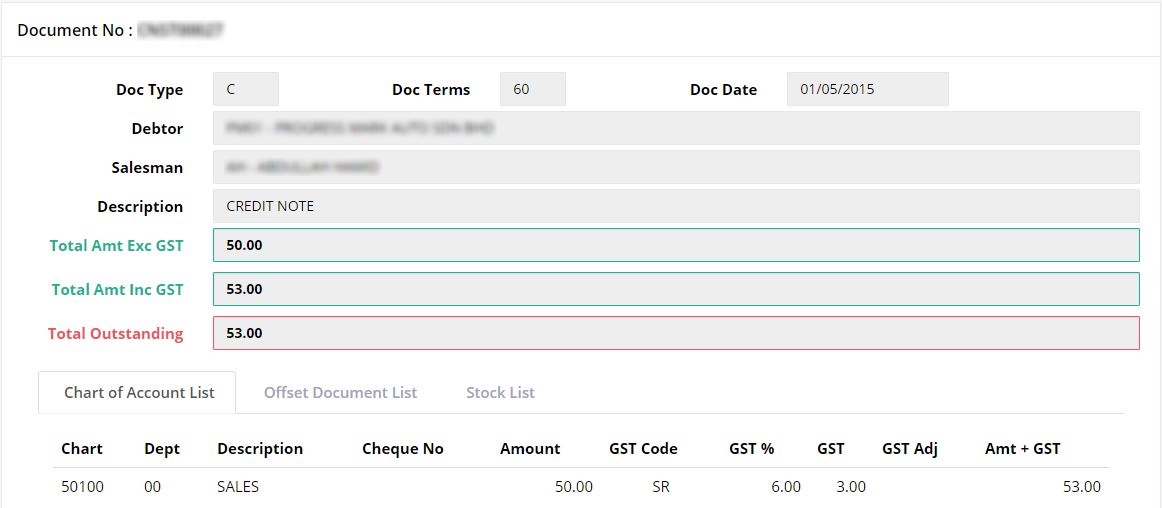 (The further explanation of this screen is explained in Document List)