DEBTOR DASHBOARD
- 1. INTRODUCTION
- 2. TOTAL DEBTOR
- 3. SALESMAN PERFORMANCE
- 4. MOST RECENT COLLECTION BY DAY
- 5. MOST RECENT SALES BY DAY
- 6. MOST RECENT SALES
- 7. MOST RECENT COLLECTION
- 8. LINK TO DOCUMENT DETAILS
INTRODUCTION
Debtor dashboard is where the user can get the quick and simple updates on any basic but important information regarding to debtor, salesman performance, and also the recent sales and collection. Basically all the information can be clicked to drill down and lead user to the more details screen. The screen is a quick and easy way to display the debtor information for the user.
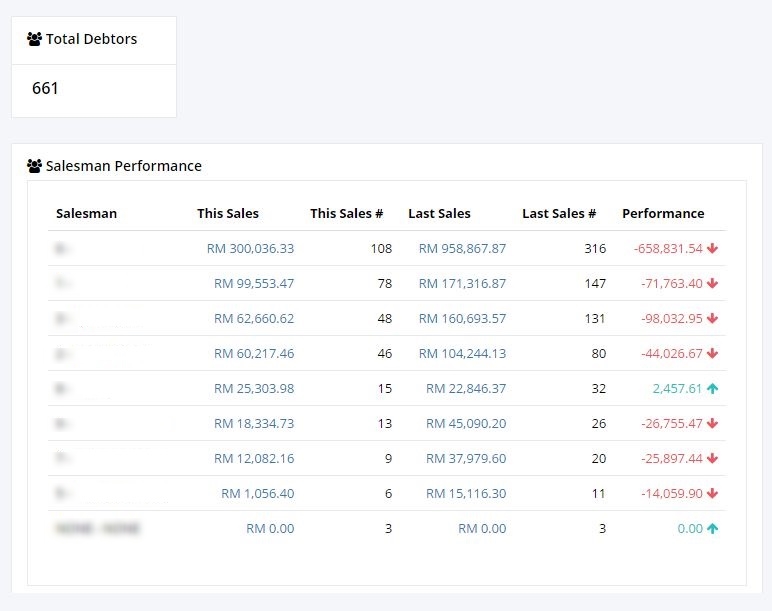
2. TOTAL DEBTOR
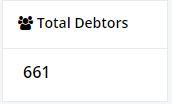 The widget displays the number of the total debtors of the company.
3. SALESMAN PERFORMANCE
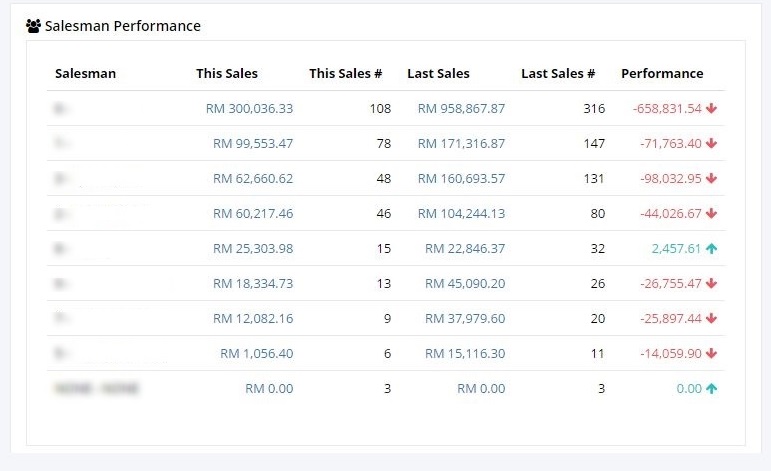
• The widget displays the record of salesman performance in details, such as current sales, last sales and also the performance by each salesman.
• The widget will only display most recent sales by day by listing the date, the amount of sales and also with the transactions.
• Clicking on the figure of This Sales and Last Sales will link user to the Document List screen where there are more information and details of the selected transaction.
4. MOST RECENT COLLECTION BY DAY
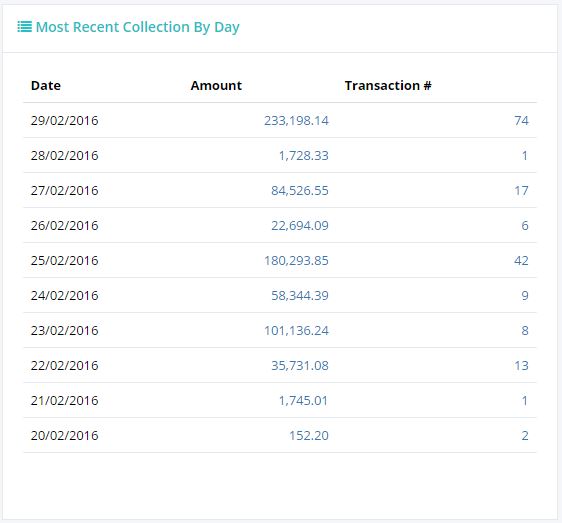
• The widget will only display most recent collection by day by listing the date, the amount of sales and also with the transactions. Only 10 recent documents will be displayed on the widget. Clicking on the document number will lead to the ‘Document’ screen in details, where user can see more information on the document such as the amount including and excluding GST, total outstanding, the chart of account list, offset document list and also the stock list.
5. MOST RECENT SALES BY DAY
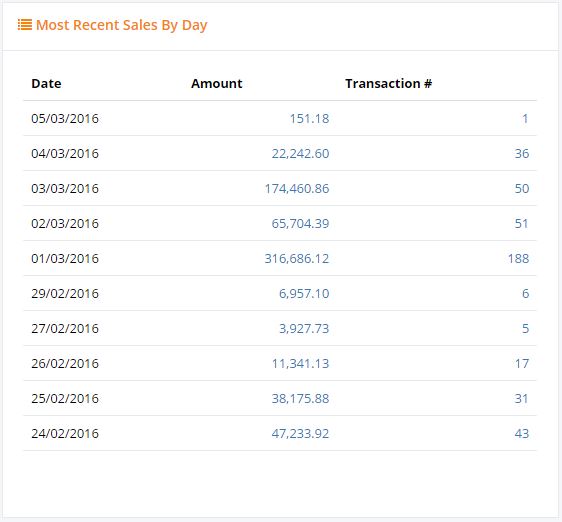
• The widget will show the most recent sales in details by listing the date, document number, debtor, salesman and total sales. Only 10 recent documents will be displayed on the widget. Clicking on the document number will lead to the ‘Document’ screen in details, where user can see more information on the document such as the amount including and excluding GST, total outstanding, the chart of account list, offset document list and also the stock list.
6. MOST RECENT SALES
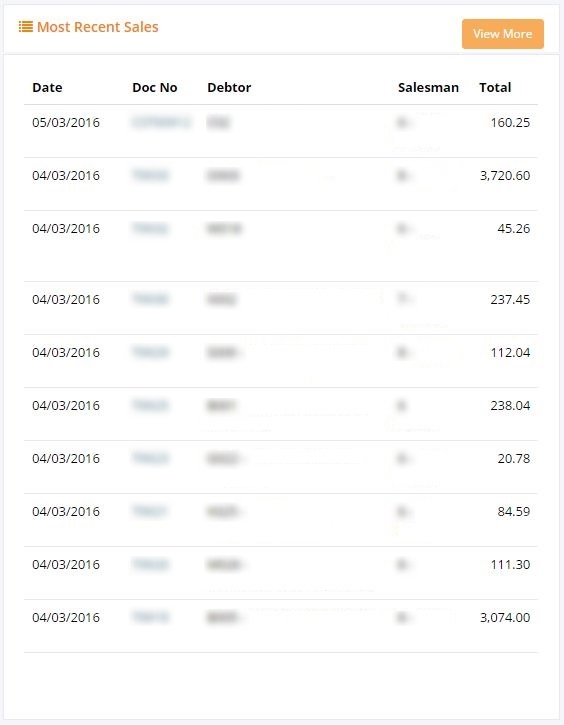
• The widget will show the most recent sales that has been collected in details and listing the date, document number, debtor, salesman, total and average ageing days. 10 documents are the maximum that will be displayed on the widget, user can click on ‘View More’ to see all the collection document lists. Clicking on the document number will lead to the ‘Document’ screen in details, where user can see more information on the document such as the amount including and excluding GST, total outstanding, the chart of account list, offset document list and also the stock list.
7. MOST RECENT COLLECTION
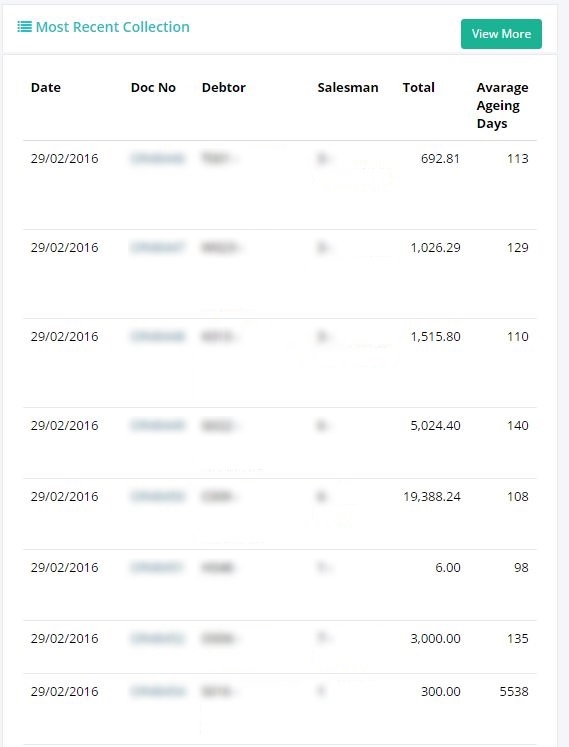
• The widget will show the most recent payment that has been collected in details and listing the date, document number, debtor, salesman, total and average ageing days. 10 documents are the maximum that will be displayed on the widget, user can click on ‘View More’ to see all the collection document lists. Clicking on the document number will lead to the ‘Document’ screen in details, where user can see more information on the document such as the amount including and excluding GST, total outstanding, the chart of account list, offset document list and also the stock list.
8. LINK TO DOCUMENT DETAILS
• Clicking on any figure of Amount and the Doc No will link user direct to the details of the document as follows
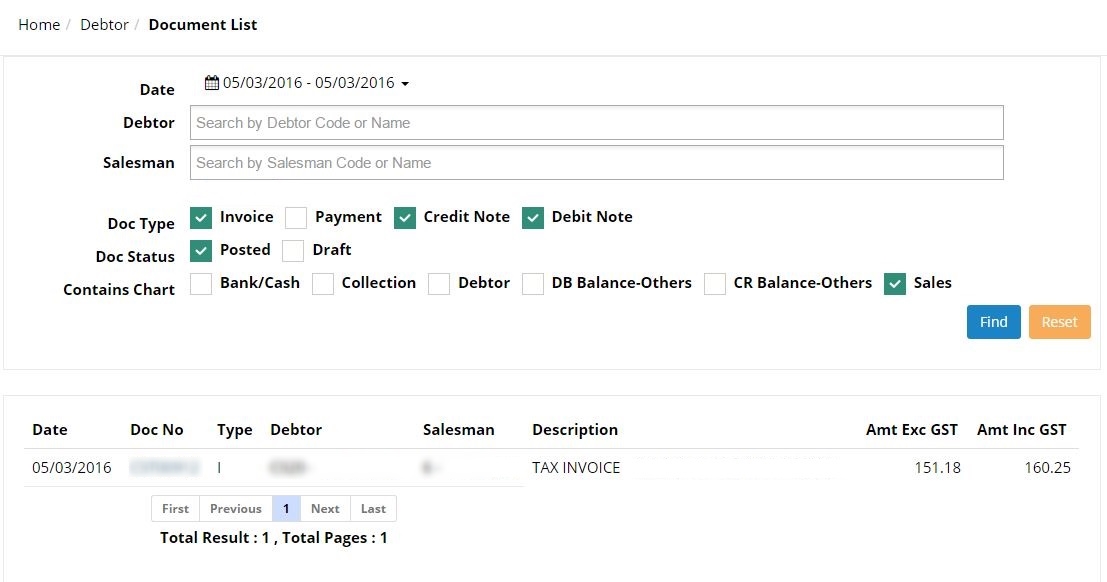 (Further explanation on this screen are described in ‘Document List’ section)