DEBTOR LIST
- 1. INTRODUCTION
- 2. CODE, NAME, PERSON & CONTACT NO.
- 3. LINK TO DEBTOR DETAILS AND OTHER
- 4. SALES AND COLLECTION
1.INTRODUCTION
Debtor list is the screen where you can get the information of the company debtors in details. All the information including debtor code, debtor name, person in-charge and contact number. All the debtor information can be drilled down for more details information such as the debtor sales and collection, ledger, transaction and the stock price.
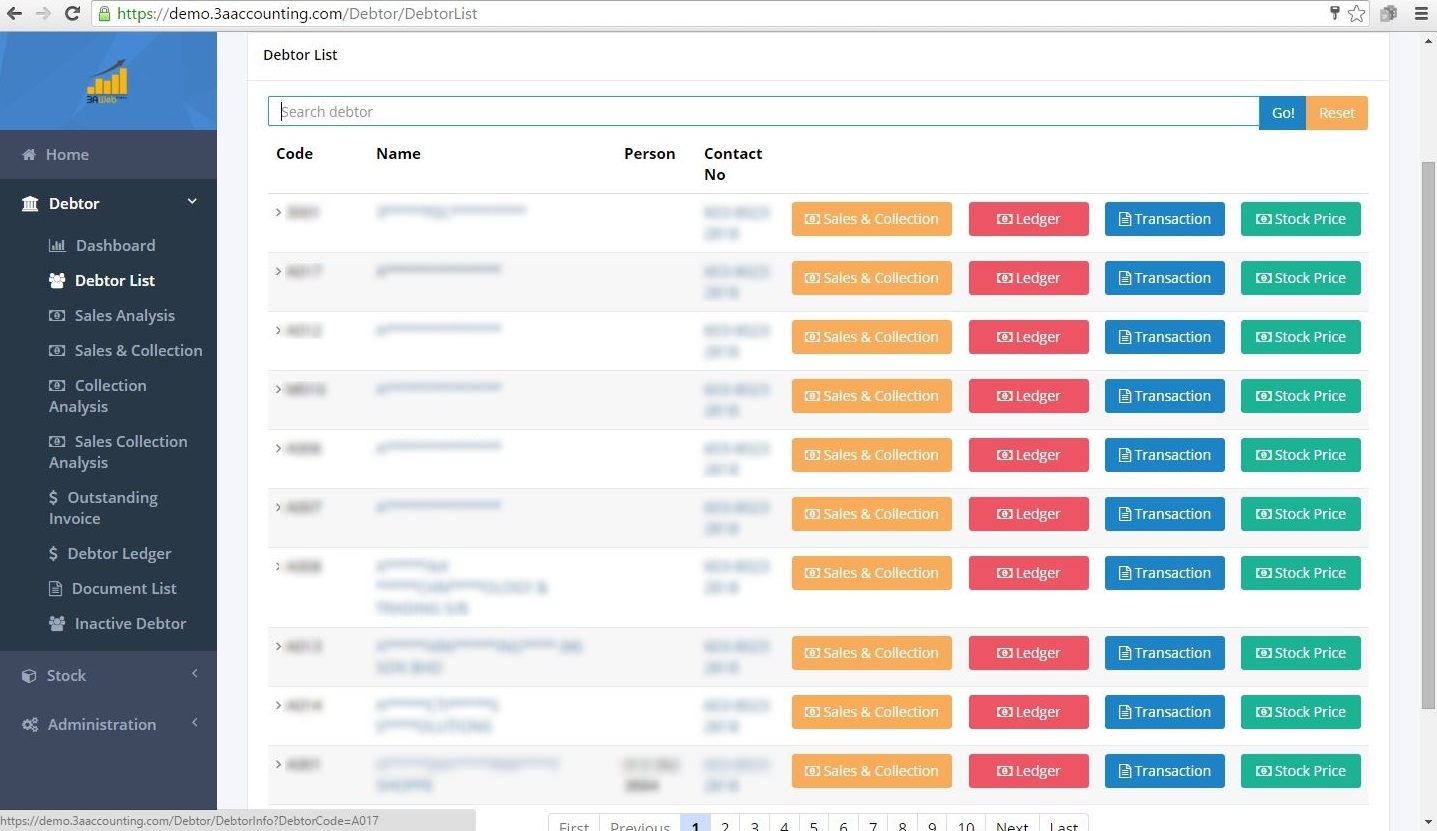
2. CODE, NAME, PERSON & CONTACT NO.
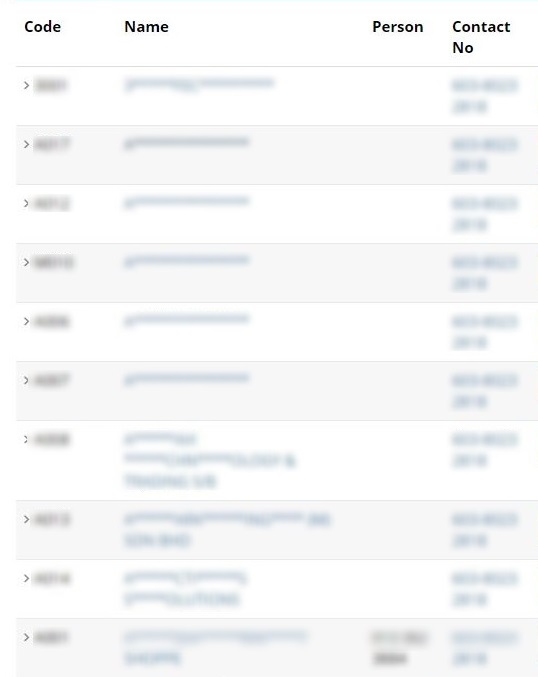
• Code
Displays the code for each debtor.
• Name
Displays the full name of the debtor/company.
• Person
Displays the name of the person/salesman in-charged.
• Contact No
Displays the contact number of the person in-charged.
3. LINK TO DEBTOR DETAILS AND OTHER
• Clicking on the Debtor Name will like user to this screen:
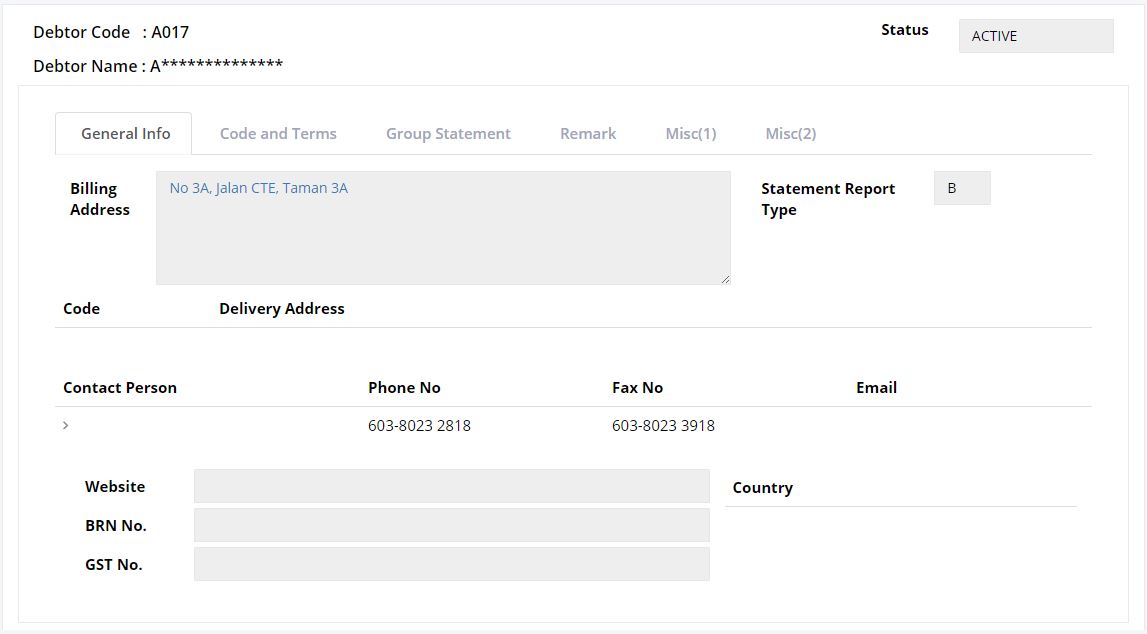
The information of user can be viewed on this screen such as the General Info, Code and Terms, Group Statement, Remark, Misc(1) and Misc(2). User may click on the tab to view the details of the debtor.
• Clicking on Contact No link user directly to call application such as skype, and if user is viewing using smartphone user can directly call the selected contact number.
• Clicking on the Address will direct user to the maps application to view the precise location of the debtor.
4. SALES & COLLECTION, LEDGER, TRANSACTION AND STOCK PRICE
• SALES & COLLECTION
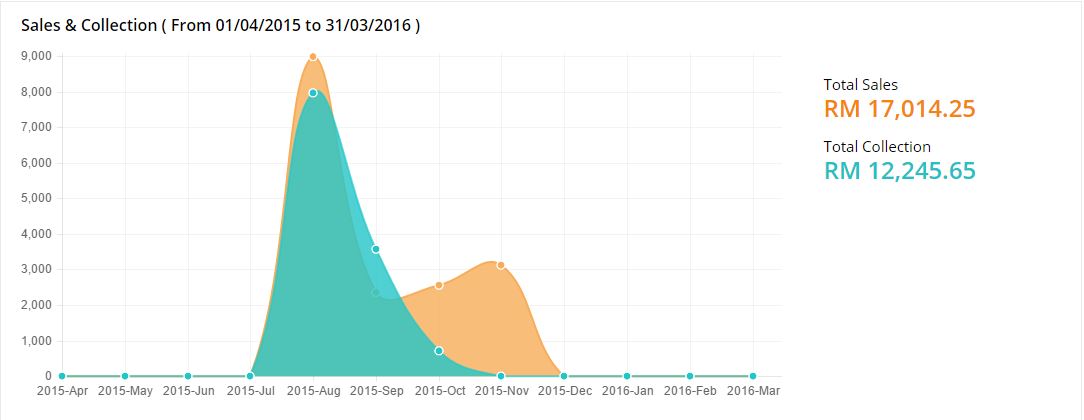
User can click on the orange button, to view the details for the debtor sales and collection in details. Clicking on the button will lead to the line chart diagram.
The screen shows the line chart for total sales and collection. The yellow area shows the total sales and the green area shows the total collection. Based on the line chart, user can view and compare the record for sales & collection as example the highest sales and collection are on August 2015.
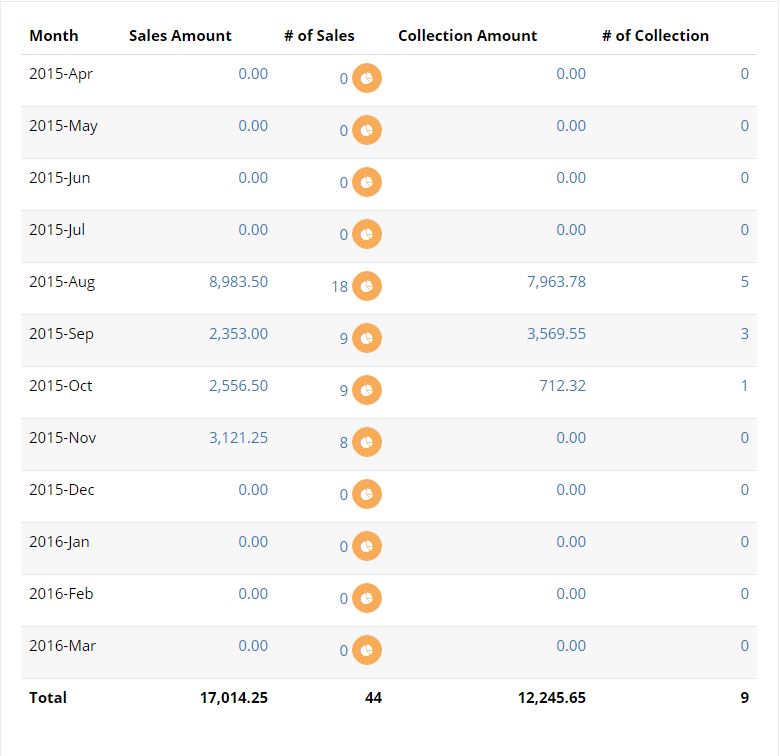
This is the details of the line chart above to make it easy for user to read the important information from the line chart. It lists the information such as month, sales amount, and number of sales, collection amount and number of collection. At the bottom, it shows the total for sales amount, number of sales, collection amount and number of collection.
• LEDGER
User can click on the red button, to view the details for the debtor ledger in details. Clicking on the button will lead to the next screen. It will be linked to the Debtor Ledger page.
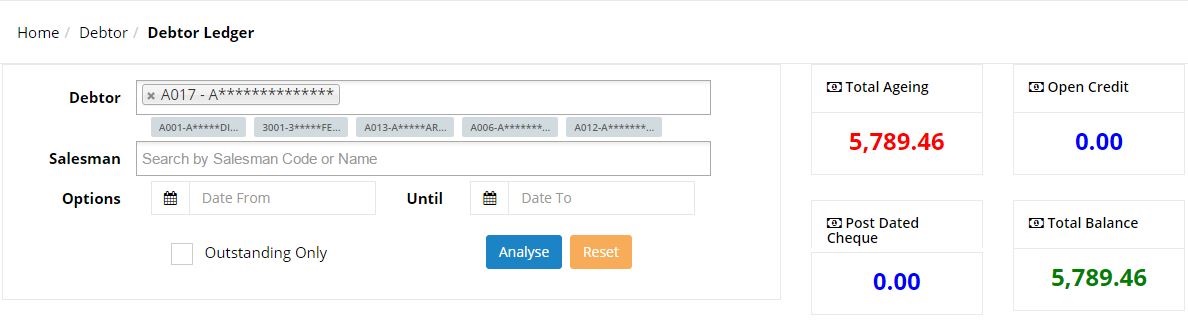
The screen displays the total ageing, open credit, Post Dated Cheque and Total Balance. Total ageing shows the total of how much the debtor still owe you. Open credit shows the total of payment that has not been applied to any transactions. The postdated cheque shows the total of payment by cheque that has not been applied to any transaction and total balance is how much the remaining balance the debtor need to pay.

This part shows the amount of remaining balance by month. User can view how much the total amount the debtor owe by month and user can click on the image to drill down to more details part.
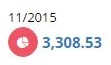
User can click both on the image and number. Clicking on the red image will lead to the next screen:
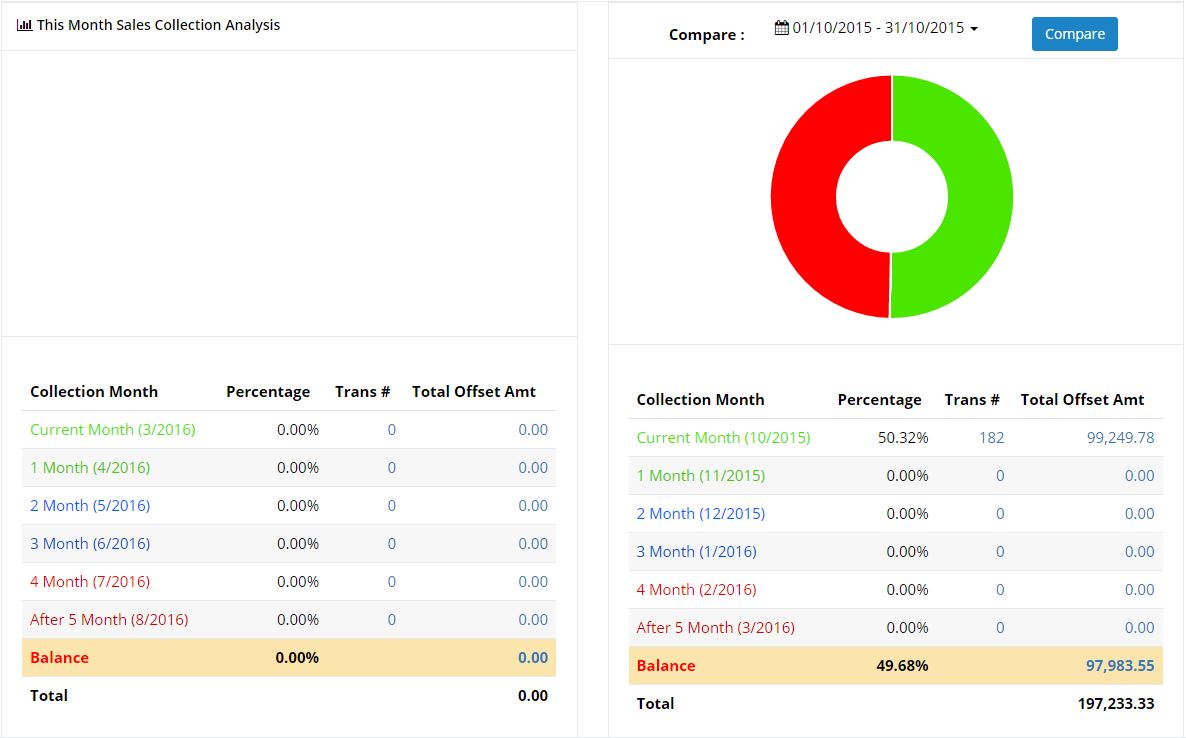
The screen shows the pie chart of total sales collection (the payment that has been collected from the debtor). On the left side shows the total sales collection for the current month and at the right shows the total sales collection for the selected month. The details including the collection month, percentage, the number of transactions and the total offset amount.
The pie chart shows the green area is the total payment collected and it can be view in the list that the percentage for current month collection is 50.32% with the total of 182 transaction and the total offset amount of RM99, 249.78.
The red area on the pie chart indicates the remaining balance that the debtor has to pay, based on the list below user can view the percentage for the balance is 49.68% with the total amount of RM97, 983.55.
User can also view the total sales and collection are RM 197, 233.33.
User can also click on the number of transaction and also the total offset amount.
 Clicking on both the number of transactions and offset amount figure will lead to this screen:
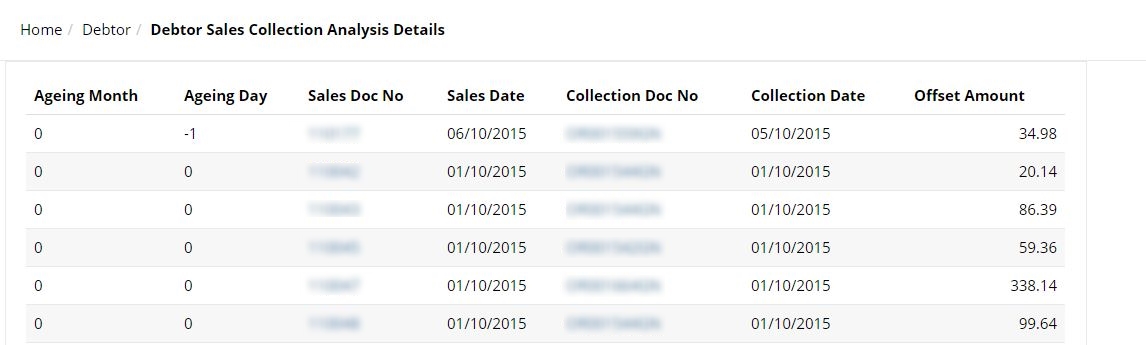
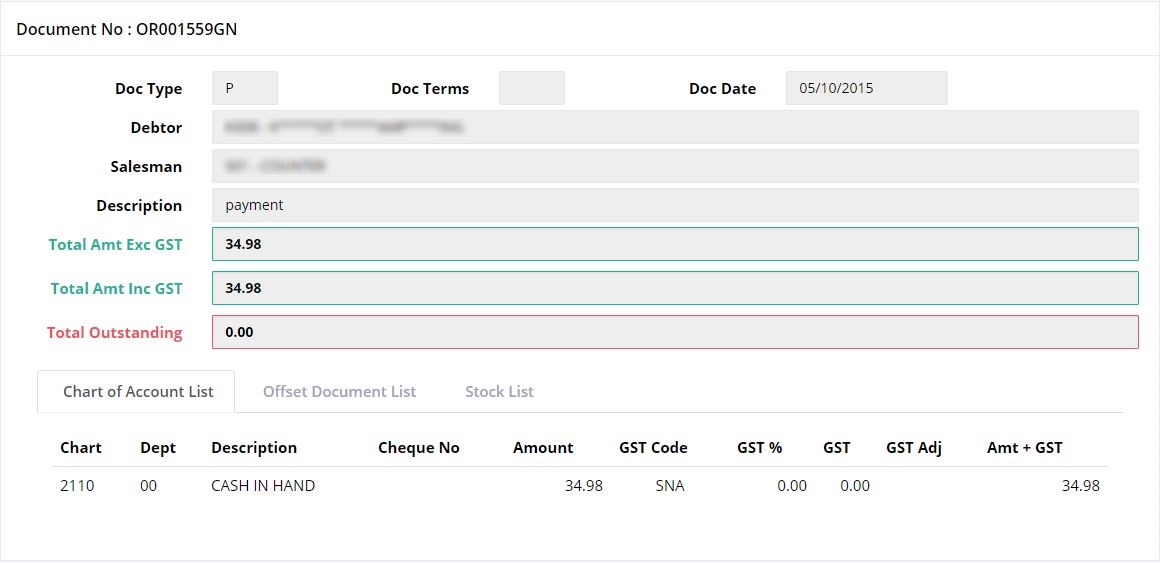
User can click on the Sales Doc No to view the details of the document. (The details of document will be described in Sales & Collection Analysis part)
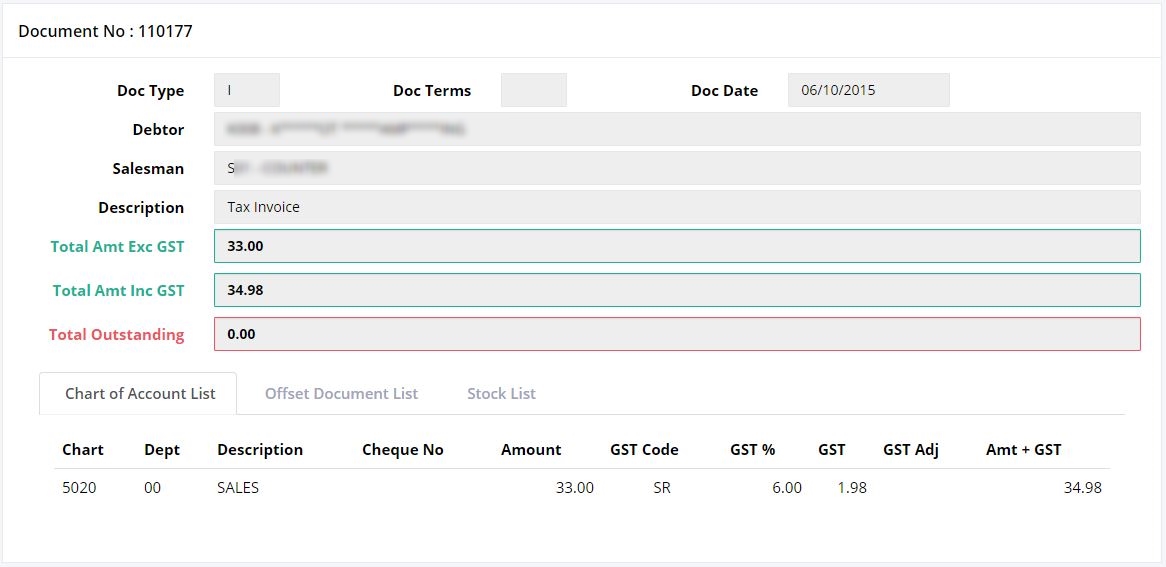
User can click on the Collection Doc No to view the details of the document. The details of document will be describes in Sales & Collection Analysis part)
• TRANSACTION
User can click on the blue button, to view the details for the transaction in details. Clicking on the button will lead to the next screen.
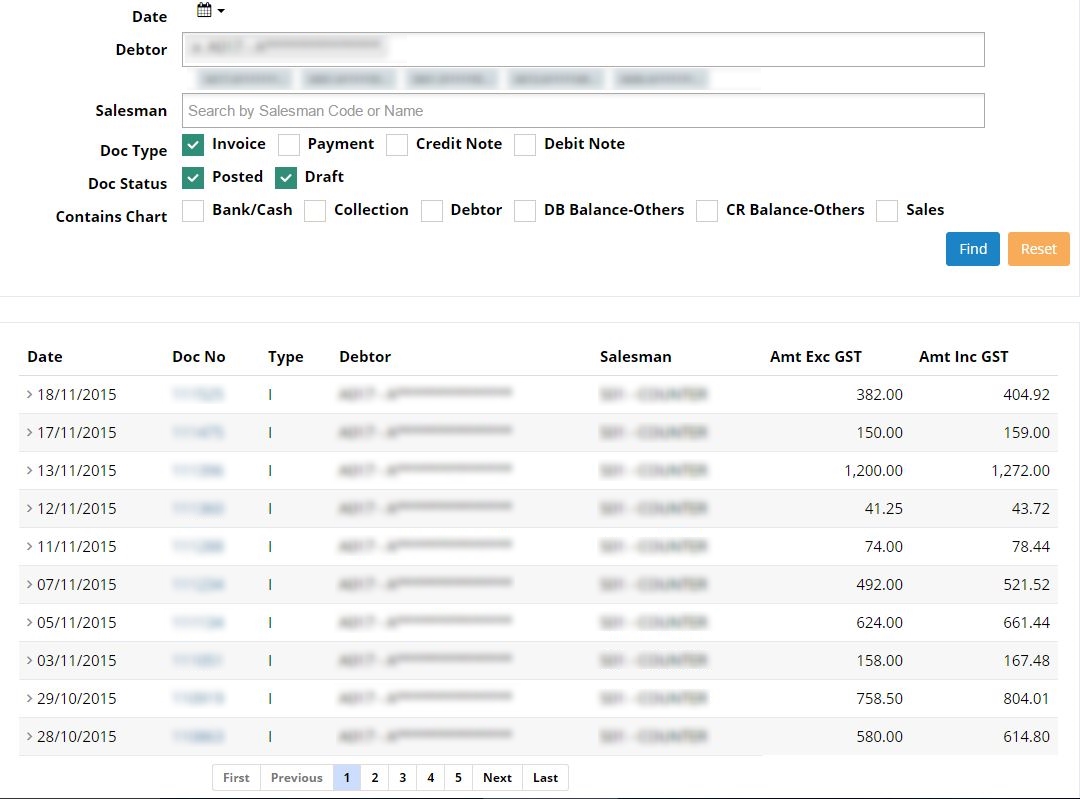
It will be linked to the Document List. The list shows all the debtor’s transaction documents.
User can select the type of document by ticking the box next to the document type. User can choose the document type such as Invoice, Payment, Credit Note or Debit Note.
User can also filter the document status whether user wants to see the list of posted or draft document, or both documents.
User may select the contains chart which include Bank/Cash, Collection, Debtor, DB Balance-Others CR Balance-Others and Sales.
User may also click on the Doc No to view the selected document in details.
• STOCK PRICE
User can click on the green button, to view the details for the transaction in details. Clicking on the button will lead to the next screen. It will be linked to the Document List. The list shows all the debtor’s transaction documents as below.
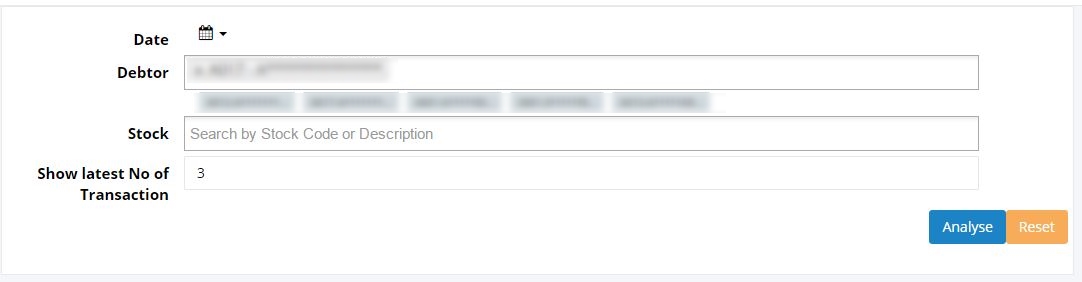
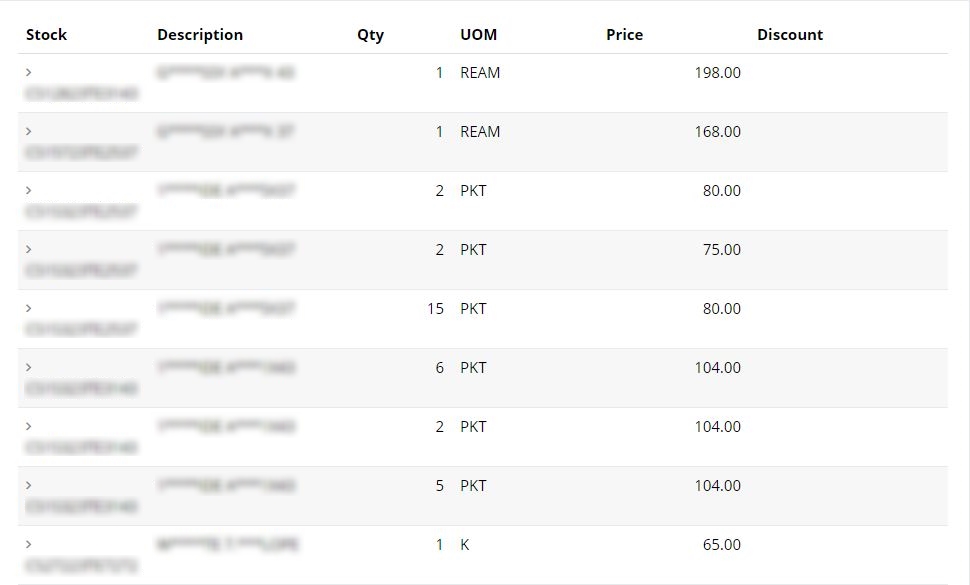
This is the stock lists of the items that has been purchased by the selected debtor. User can view the record of stock information that has been purchased by the debtor, the record will display the information such as the quantity, unit of measurement (UOM), price and discount. User can keep track with the change in item’s price.