INACTIVE DEBTOR
- 1. INTRODUCTION
- 2. INACTIVE DEBTOR
INTRODUCTION
Inactive debtor will show the debtors that are currently inactive for the last 3 months. User can view the debtor that has zero transactions within 3 months or view the debtor that has stopped doing any business transaction for the last 3 months.

The list will show the debtor code, the Debtor Name and the total transaction counts. The list will only show the maximum of ten 10 debtors, user may click on next page to check out another debtor name listed.
2. INACTIVE DEBTOR
• Debtor Code
Display the debtor code of the debtor.
• Debtor Name
Display the debtor name.
• Transaction Count
Show the total number of transactions of the debtor. User may click on the number of transaction and it will directly link user to the Sales & Collection screen:
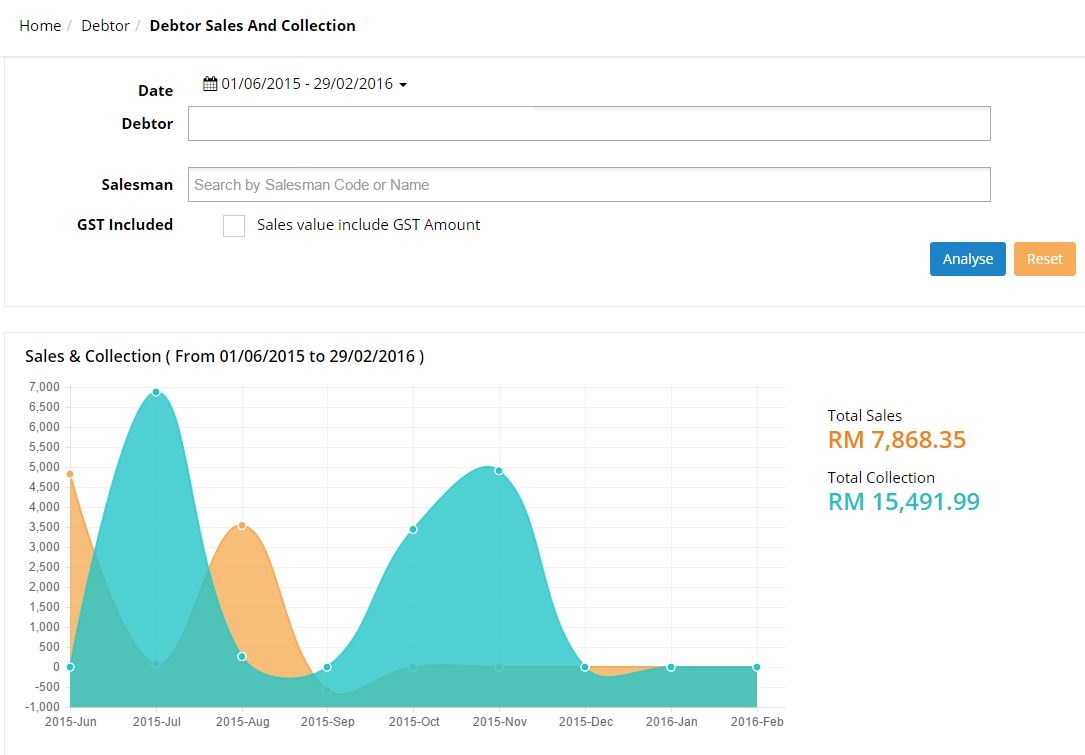
The line graph for the selected transaction would be display to make it easy for user to analyse the sales and collection record by the transactions.
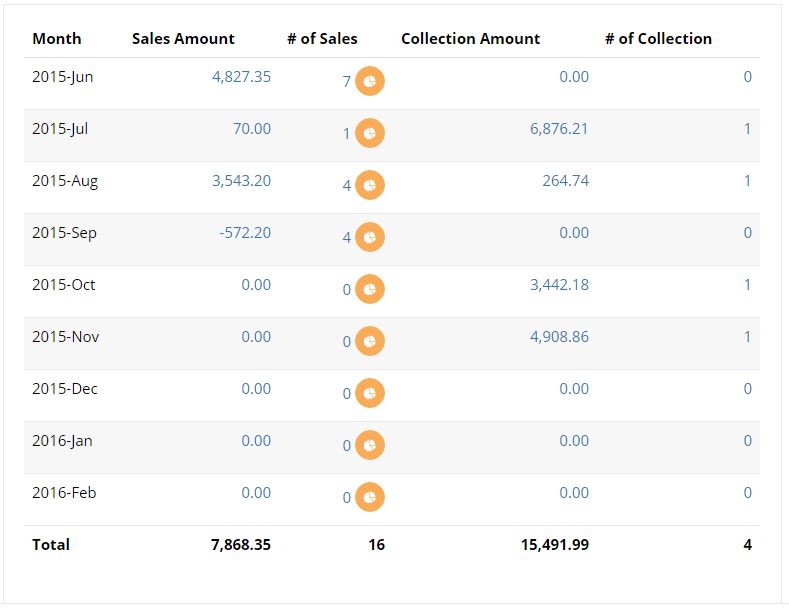
User may refer to the list to view the details for each transaction by month, the sales amount, number of sales, collection amount and also the number of collection. The bottom part will show the total amount for sales, number of sales, collection and number of collection.

User can drill down by clicking this button for more details information as it will link user to sales analysis screen.
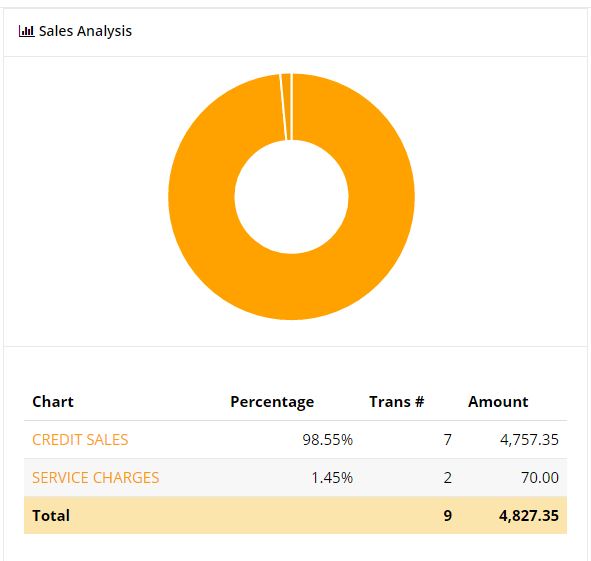
User can view the specific sales analysis in the pie chart form. The information included the percentage, number of transactions and amount.
User can click on the Sales Amount and Collection Amount to view the details of the document.
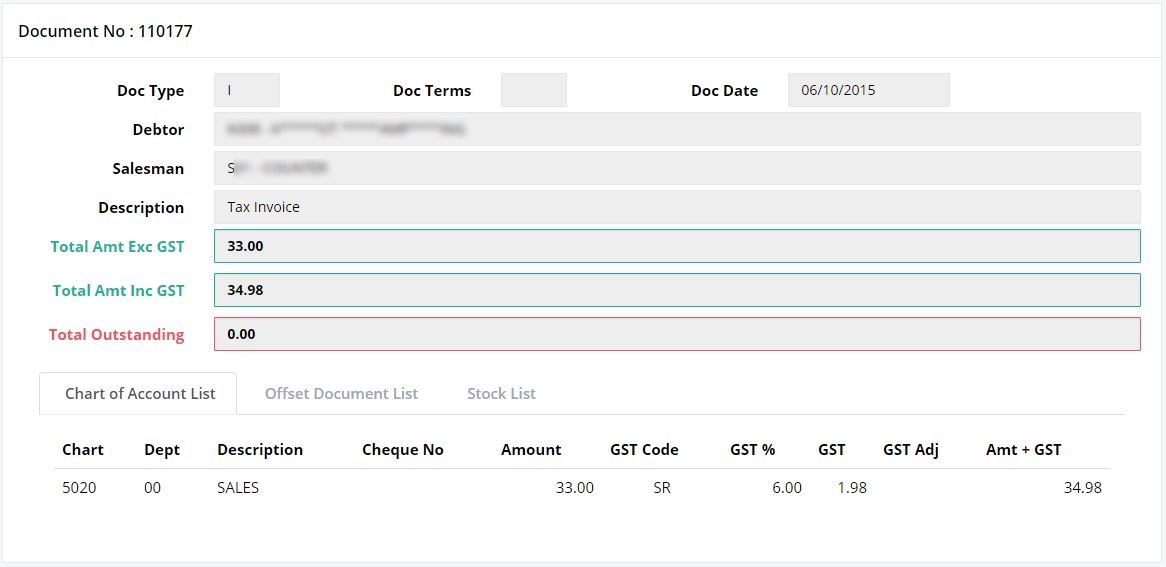
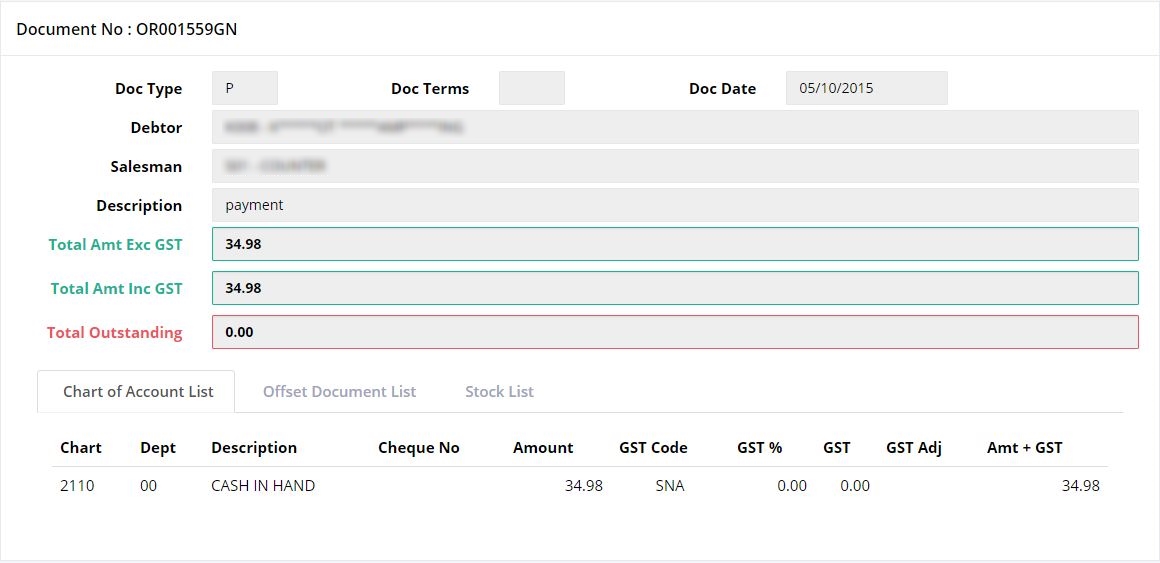
(Further explanation on this screen are described in ‘Document List’ section)